Deadline: Tuesday, February 3rd, 11:59 PM PT.
Overview
This is the standard mode of project 0. In this version of project 0, we’ll provide a lot of the structure of the code for you, and you’ll fill in the details.
If you’d prefer the hard mode of the project see proj0_hardmode. The hard mode project assumes you have very solid programming fundamentals (e.g. maybe an A or better in a prerequisite course and/or prior Java experience), and requires you to build almost everything from scratch, though with a lot of scaffolding. Hard mode may be extra fun but is not extra points.
Prerequisites. Before starting this project you should have completed:
In this mini-project, you’ll get some practice with Java by creating a physics sandbox. We’ll provide a chunk of starter code (much of which uses syntax you’ve never seen before), and you’ll fill in the most interesting pieces.
If you prefer to build almost everything from scratch, please see the hard mode spec.
Using Git
It is important that you commit work to your repository at frequent intervals. Version control is a powerful tool for saving yourself when you mess something up or your dog eats your project, but you must use it regularly if it is to be of any use. We’d recommend committing at least every 15 minutes; Git only saves what has changed, even though it acts as if it takes a snapshot of your entire project.
The command git status will tell you what files you have modified, removed, or possibly added since the last commit.
It will also tell you how much you have not yet sent to your GitHub repository.
The typical commands would look something like this:
git status                          # To see what needs to be added or committed.
git add <file or folder path>       # To add, or stage, any modified files.
git commit -m "Commit message"      # To commit changes. Use a descriptive message.
git push origin main                # Reflect your local changes on GitHub so Gradescope can see them.
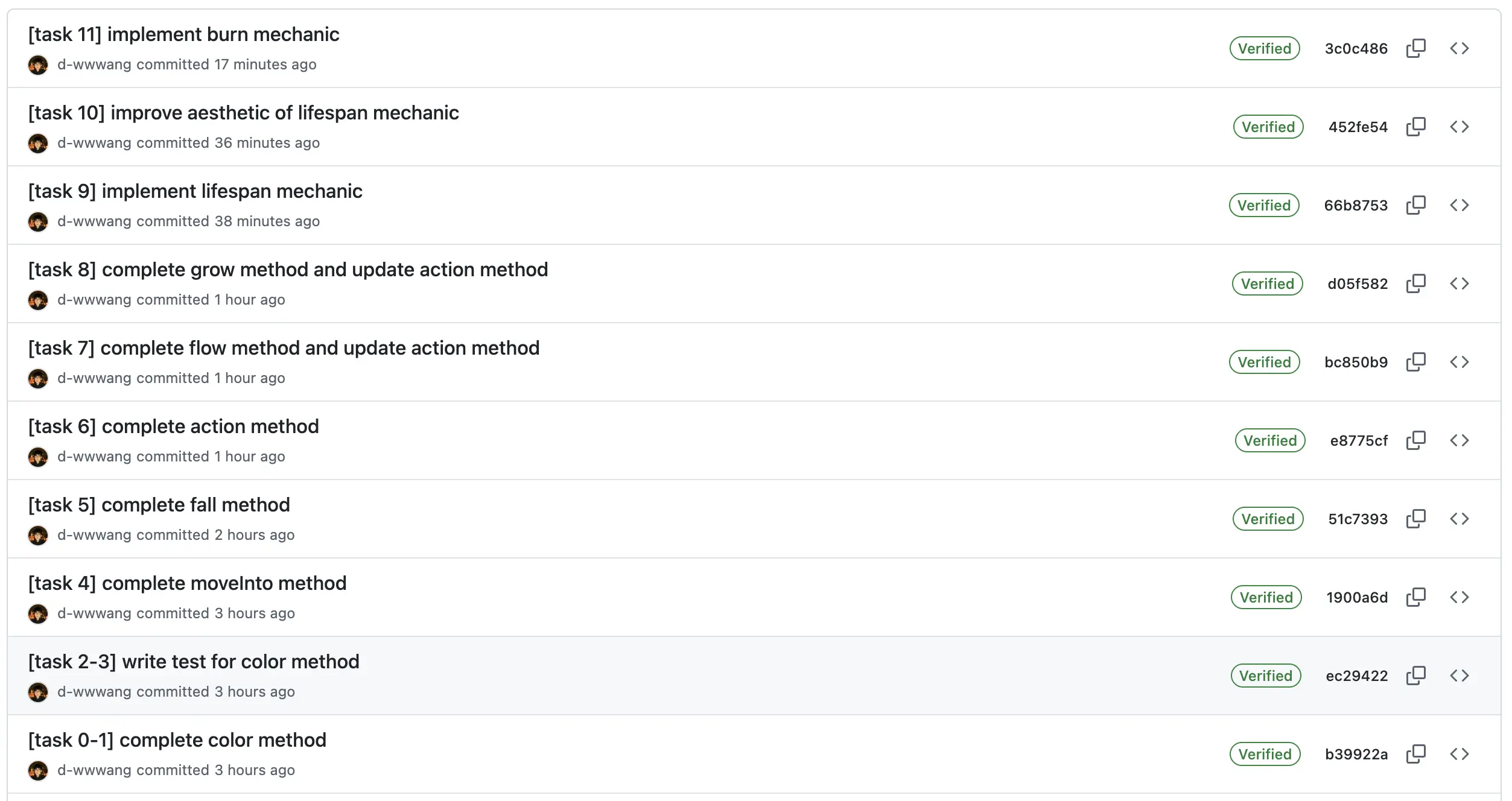
Then you can carry on working on the project until you’re ready to commit and push again, in which case you’ll repeat the above. It is in your best interest to get into the habit of committing frequently with informative commit messages so that in the case that you need to revert back to an old version of code, it is not only possible, but easy. We suggest you commit every time you add a significant portion of code or reach some milestone (passing a new test, for example).
Below is an example for this project:
Misconduct
In order to discourage LLM use, we will be conducting random code reviews for submitted project code for all five projects, with some bias towards code that appears to be LLM generated.
If you find yourself at such a point of total desperation that cheating begins to look attractive, please come to office hours or create a private post on Ed for assistance. We are here to help!
For students selected for code review, we’ll hold short interviews to verify that you are able to explain your code and are capable of generating similar code unassisted.
Setup
Getting the Skeleton Files
Follow the instructions in the Assignment Workflow Guide to get the skeleton code and open it in IntelliJ. For this project, we will be working in the proj0/ directory.
If you get some sort of error, STOP and either figure it out by carefully reading the git WTFs or seek help at OH or Ed. You’ll save yourself a lot of trouble vs. guess-and-check with git commands. If you find yourself trying to use commands recommended by Google like force push, don’t. Don’t use
git push -f, even if a post you found on Stack Overflow says to do it!If you can’t get Git to work, watch this video as a last resort to submit your work.
File Structure
proj0
├── src
    ├──Direction.java
    ├── ParticleFlavor.java
    ├── Particle.java
    ├── ParticleSimulator.java
├── tests
    ├── TestParticle.java
    ├── TestParticleSimulator.java
After pulling the skeleton you should see a file structure as above. For this project, you are welcome to look at other files but you will only need to modify Particle.java and ParticleSimulator.java. The two test files hold tests for each of the tasks below so make sure you run every test and check whether you have completed it correctly.
For this project, all the tests on the autograder will be included in the skeleton, but this will not be the case for future projects. In other words, there are no hidden tests.
Task 0: Starting the Particle Simulator
To test that everything is working correctly, open the
ParticleSimulator.javafile and run the main method. You should see a window pop up that saysStandardDraw.Try clicking in the window. You should see gray boxes appear. These are particles. The goal of this project will be to create different types of particles with different behaviors!
If you aren’t able to run the main method, make sure you have the following:
- IntelliJ updated to the latest version that begins with 2025 as in version 2025.X.X (see Help > Check for Updates for Windows/Linux or IntelliJ IDEA > Check for Updates for macOS)
- SDK and language level set to 25 in Project Structure
Task 1: Particle Color
Modify the
public Color color()method so that it behaves as shown below:
- If the flavor is EMPTY, then return
Color.BLACK.- If the flavor is SAND, then return
Color.YELLOW.- If the flavor is BARRIER, then return
Color.GRAY.- If the flavor is WATER, then return
Color.BLUE.- If the flavor is FOUNTAIN, then return
Color.CYAN.- If the flavor is PLANT, then return
new Color(0, 255, 0). This is a color that has 0 red, 255 green, and 0 blue as its three components.- If the flavor is FIRE, then return a
Colorwhich has 255 red, 0 green, 0 blue.- If the flavor is FLOWER, then return a
Colorwhich has 255 red, 141 green, 161 blue.
Task 2: Visually Testing the Color Function
We can try testing the color function using the Particle Simulator class!
At the top of the ParticleSimulator.java, you should see code that looks like this:
    public static final Map<Character, ParticleFlavor> LETTER_TO_PARTICLE = Map.of(
            's', ParticleFlavor.SAND,
            'b', ParticleFlavor.BARRIER,
            'w', ParticleFlavor.WATER,
            'p', ParticleFlavor.PLANT,
            'f', ParticleFlavor.FIRE,
            '.', ParticleFlavor.EMPTY,
            'n', ParticleFlavor.FOUNTAIN,
            'z', ParticleFlavor.FLOWER
    );
These are the keys you can press to create particles of the given type. For example, try pressing w and then click, and you should see water tiles appear.
Try making different types of particles and verifying that the colors show up as expected!
Task 3: Testing the Color Function Automatically
Throughout this course, we’ll be writing and running tests using a library called Google Truth, covered in lecture 4. For this specific project, you’ll only be running tests, not writing them. Open the TestParticle.java file and look at the method called testColor. Here, you can see the code we’ve set up to check your color method. This is also the exact code that we have running in our gradescope autograder.
Click on the run button to the left of the
testColormethod. You should pass the test. If you do not, fix yourcolormethod so that you do pass the test.
Task 4: MoveInto
We will want our particles to be able to move around. Most particles will just fall, but water particles will also be able to flow around.
To allow our particles to move, we’ll implement a moveInto function that transfers the color and lifespan of a particle into a different particle.
Fill in the
moveIntofunction inParticle.javaThe behavior of this function is that after running it:
other.flavorshould be equal to the current particle’s flavorother.lifespanshould be equal to the current particle’s lifespan- The current particle’s flavor should be set to EMPTY (because it moved, leaving emptiness behind)
- The current particle’s lifespan should be set to -1 (because it moved, leaving emptiness behind)
Some Python pseudocode is given below:
def move_into(self, other: 'Particle'):
    other.flavor = self.flavor
    other.lifespan = self.lifespan

    self.flavor = ParticleFlavor.EMPTY
    self.lifespan = -1
To test your moveInto function, run the testMoveInto function in TestParticle.java.
There’s no way to visually verify this function yet. Make sure you pass the test before moving on.
Task 5: Fall
Next, fill in the public void fall(Map<Direction, Particle> neighbors) method.
Here, the method is given a Map that goes from each of the four possible directions Direction.DOWN, Direction.LEFT, Direction.RIGHT, Direction.UP to a Particle.
For example, if we call Particle p = neighbors.get(Direction.DOWN), then p is a reference to the particle below. If we then check and see that p.flavor is SAND, then that means we know the neighbor below us is a SAND particle.
The fall method should:
- Check the neighbor in the down direction, e.g.
neighbors.get(Direction.DOWN). - If that neighbor has a flavor equal to
ParticleFlavor.EMPTY, then the current particle shouldmoveIntothat particle. You’ll want to use yourmoveIntofunction from earlier.
To test your fall function call the testFall method in TestParticle.java. Run the test and verify your fall method works correctly.
You may assume that none of the neighbors are null. Our starter code treats any off screen coordinates as BARRIER.
There’s no way to visually verify this function yet. Make sure you pass the test before moving on.
Task 6: Enabling Gravity
The Particle Simulator works by calling action on each particle.
Look at the action method in Particle.java. You’ll see it currently does nothing. We want to particles to obey the laws of gravity and fall towards the ground.
Modify the
actionmethod so that the logic is:
- If the flavor of the current particle is EMPTY, return immediately.
- If the flavor of the current particle is not BARRIER, call
fall.
Once you’ve done this, run the ParticleSimulator.java again. You should see that when you create any particle type other than BARRIER, it falls. However, if you create a BARRIER it should remain hanging in mid-air.
Try holding and dragging your cursor. You should see a lot of particles falling!
You can also test your code by running testFallVisual and testBarrierDoesntFall in TestPaticleSimulator.
Task 7: Making Water Flow
We want water to flow. To make this happen, fill in the
public void flow(Map<Direction, Particle> neighbors)method.It should choose one of the following three choices:
- With 1/3 chance, don’t do anything.
- With 1/3 chance, if the left neighbor is empty,
moveIntoit.- With 1/3 chance, if the right neighbor is empty,
moveIntoit.
Only one of these three choices should be picked. If the water is blocked by a non-empty neighbor, then nothing happens.
To get a random number in the range [0, 1, 2], use StdRandom.uniformInt(3);. For each call to flow, generate only one random number total, and use the result of the random number generation to select which of three options occurs.
After writing
flow, modify theactionmethod so that the logic is:
- If the flavor of the current particle is EMPTY, return immediately.
- If the flavor of the current particle is not BARRIER, call
fall.- If the flavor of the current particle is WATER, call
flow.
Your action method should be a sequence of if statements. Do not use else.
Minor detail (that you can feel free to ignore): When fall is called on a water particle, it may move into the particle below it. When this occurs, this particle’s flavor will be changed to EMPTY, so flow will not be called.
After implementing this function, create some BARRIER particles, maybe in a bowl shape. Then drop some WATER particles and you should see that after the bowl is full, the WATER particles start to overflow the edges.
To test your flow method, run testFlow in TestParticle.java, and testTickWithFlow and testFallingWaterDoesNotFlow in TestParticleSimulator.java.
Task 8: Making Plants (and flowers) Grow
Modify
public void grow(Map<Direction, Particle> neighbors). It should pick from the following four choices:
- With 10% chance, if the UP neighbor has flavor
EMPTY, set the flavor of the up neighbor to the same flavor as the current particle.- With 10% chance, if the LEFT neighbor has flavor
EMPTY, set the flavor of the LEFT neighbor to the same flavor as the current particle.- With 10% chance, if the RIGHT neighbor has flavor
EMPTY, set the flavor of the RIGHT neighbor to the same flavor as the current particle.- With 70% chance do none of the above.
Make sure to set the neighbor’s lifespan based on the flavor of the current particle, e.g. if a
PLANTgrows into the UP position, it should have a lifespan of 150 as given inLIFESPANS.
Only one of these four choices should be picked. You should not create any new Particle objects when growing. Instead, set the flavor of the existing particle to the same flavor as the current particle.
Use the LIFESPANS map for the cleanest code
To get a random number from [0, 1, 2, 3, 4, 5, 6, 7, 8, 9], use StdRandom.uniformInt(10);.
Then modify
actionso that it has the following behavior:
- If the flavor of the current particle is EMPTY, return immediately.
- If the flavor of the current particle is not BARRIER, call
fall.- If the flavor of the current particle is WATER, call
flow.- If the flavor of the current particle is PLANT or FLOWER, call
grow.
When you run the simulator, you should see that when a FLOWER or PLANT hits the ground, it should start growing.
To test your grow method, run testGrow in TestParticleSimulator.java.
Task 9: Making Lifespan Count
First, update the
Particle.javaconstructor to set the lifespan based on the Particle’s flavor. You’ll see that the default implementation sets the lifespan to-1. Change the behavior so that if the flavor isPLANT,FLOWER, orFIRE, the lifespan is set according to the variables at the top of the class. Otherwise, the lifespan should remain -1. Use theLIFESPANSmap for the cleanest code.Next, add a method to
Particle.javacalledpublic void decrementLifespan(). It should have the following behavior:
- If the lifespan of the current particle is greater than 0, subtract 1 from the lifespan.
- If the lifespan of the current particle is zero, set its flavor to
EMPTYand its lifespan to -1.Then modify the
tickmethod ofParticleSimulator.javaso that after callingactionon each particle, you then calldecrementLifespanimmediately. That is, thetickmethod should have these lines:Map<Direction, Particle> neighbors = getNeighbors(x, y); particles[x][y].action(neighbors); particles[x][y].decrementLifespan();
particles is a list of lists of Particle objects, so particles[x][y] refers to a single Particle.
Try running your code again and you should see that rather than taking over the whole screen, plants and flowers should die off as they get old, leaving their descendents to fall and replace them.
To test your code, run testLifespan() in TestParticleSimulator.java.
Task 10: Making Lifespan Visible
This task is just a copy-and-paste job. To make it more clear how old
PLANT,FLOWER, andFIREparticles are, replace theColorfor these three particles with this code in thepublic Color color()method:if (flavor == ParticleFlavor.FLOWER) { double ratio = (double) Math.max(0, Math.min(lifespan, FLOWER_LIFESPAN)) / FLOWER_LIFESPAN; int r = 120 + (int) Math.round((255 - 120) * ratio); int g = 70 + (int) Math.round((141 - 70) * ratio); int b = 80 + (int) Math.round((161 - 80) * ratio); return new Color(r, g, b); } if (flavor == ParticleFlavor.PLANT) { double ratio = (double) Math.max(0, Math.min(lifespan, PLANT_LIFESPAN)) / PLANT_LIFESPAN; int g = 120 + (int) Math.round((255 - 120) * ratio); return new Color(0, g, 0); } if (flavor == ParticleFlavor.FIRE) { double ratio = (double) Math.max(0, Math.min(lifespan, FIRE_LIFESPAN)) / FIRE_LIFESPAN; int r = (int) Math.round(255 * ratio); return new Color(r, 0, 0); }
This should considerably improve the aesthetics! Run the simulator again with flowers and plants and see how it all looks.
Task 11: Making Fire Burn
Modify
public void burn(Map<Direction, Particle> neighbors)such that it has the following behavior:
- For each neighbor, if the neighbor is either PLANT or FLOWER, with 40% chance independently, give that flavor
ParticleFlavor.FIREand set its lifespan toFIRE_LIFESPAN.Then modify the
actionmethod to so that if the current particle isFIRE, it callsburn.
Now run the simulation, adding some plants and/or flowers, and then fire. You should find that plants and flowers are flammable. You should notice that because our universe has directional bias, i.e. the simulation goes from the bottom left to top right, that fire burns asymmetrically, burning more quickly towards the right than towards the left.
Run testBurn() in TestParticleSimulator.java to verify your burn method is working correctly. Once you’ve passed this final test, you’ve completed the non-optional part of this project and can submit to Gradescope.
There are some other tests included in TestParticleSimulator.java. Make sure they are passing as well!
Task 12 (Optional, No Credit): Get Creative
After you’ve submitted to gradescope, feel free to get creative and add new features to your simulator. For example, you can make the FOUNTAIN particle do something, you can add new particle types, you can change the aesthetics of the universe, you can add new ways to interact with the world, e.g. adding a playable character that can run around with the arrow keys, etc. Whatever you’d like to do.
Make sure you get a full gradescope score before you make any changes that cause the autograder to fail.
Task 13: Create a Video of Your Simulation (Optional)
Optionally, you can create a short screen recording of your simulation. Showcase some neat things that you discover. You can do this even if you skipped task 12. Post your video (unlisted or public is fine) on youtube and submit your video here: [61B SP26] Project 0 Contest
If you opt-in to the contest on the form, we’ll pick some favorites and let you demo in class, or we can demo for you.